
Disclosure: AI Tricks is reader-supported. This guide contains an affiliate link to Corel VideoStudio. If you sign up through our link, we may earn a commission at no extra cost to you. It does not change our review or the price you pay.
Most video editors today want your money every month. You pay $15, $20, or $25 a month, and the day you stop paying, the software stops working. After two years, you have paid $400 or more and you own nothing. For a hobby editor, a teacher, or a small YouTuber, that is a bad deal.
Corel VideoStudio takes the other path. You buy it once, and it is yours. Pro costs $79.99 and Ultimate costs $99.99 as a one-time payment. There is a 30-day free trial, so you can test the full editor before you pay, and a 30-day money-back guarantee if you change your mind. The 2026 version adds AI tools — image generation, image remixing, and 2,000 generative-AI credits — without turning the editor into a subscription.
VideoStudio has been around for many years, and it shows in the best way: the editor is stable, the tools are where you expect them, and the learning curve is short. A beginner can cut a first video in an afternoon. An experienced editor gets multicam, motion tracking, colour grading, and 360-degree video without paying for a professional suite.
In this guide, we explain what VideoStudio 2026 is, what each tool does, the real pricing and free-trial limits, and how to use it step by step. We also compare it with Filmora, Premiere Pro, DaVinci Resolve, and CapCut, so you can see which editor fits your work. Prices change often, so always check the official VideoStudio pricing page before you buy.
 Try VideoStudio Free for 30 Days →
In This Guide
- 1. What is Corel VideoStudio?
- VideoStudio Plans at a Glance
- Key Features
- VideoStudio Pricing
- How to Use VideoStudio
- VideoStudio vs Alternatives
- VideoStudio for Everyday Jobs
- What VideoStudio Cannot Do
- Pros and Cons
- Who Should Use VideoStudio
- Frequently Asked Questions
- Final Thoughts
What is Corel VideoStudio?
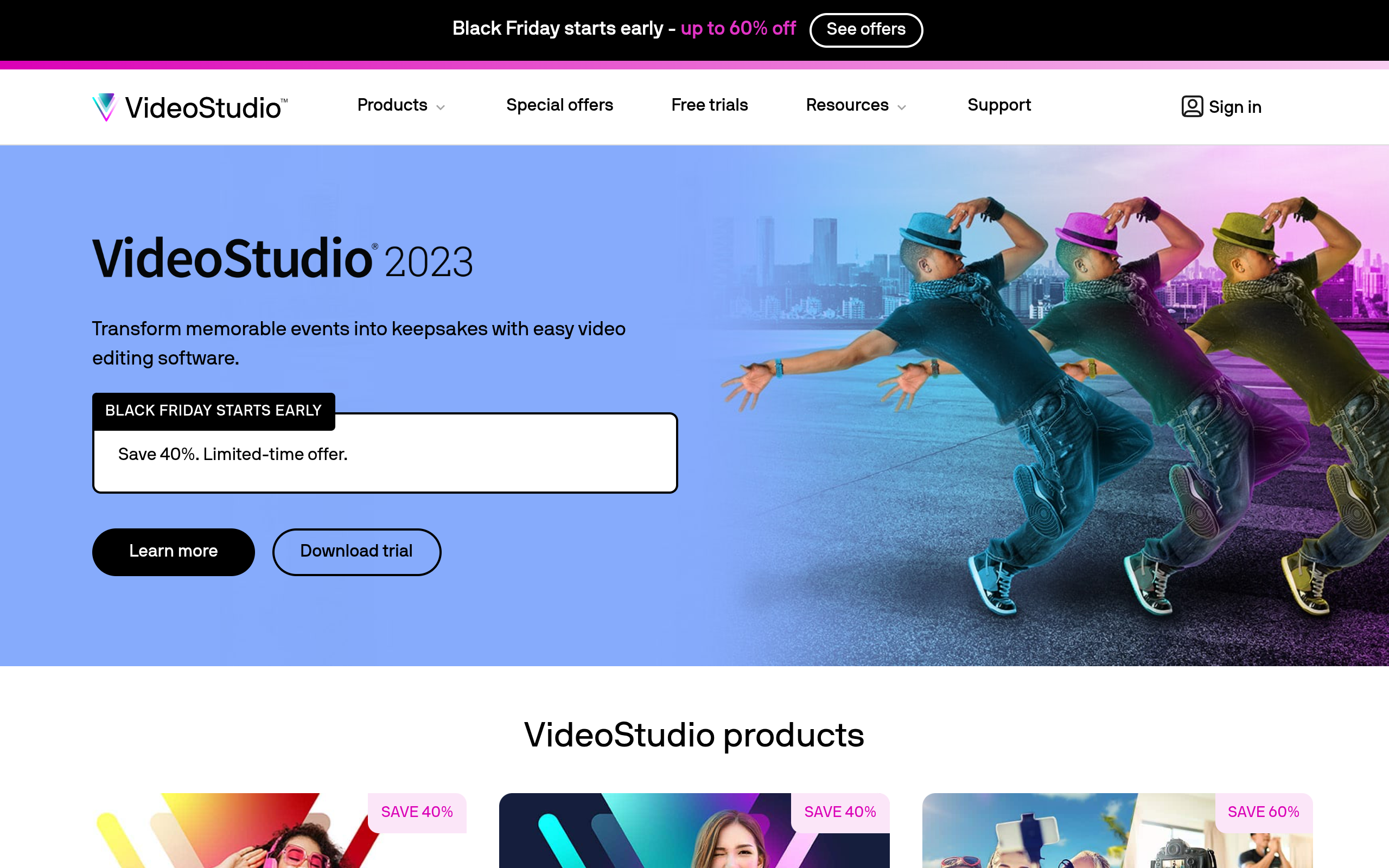
Corel VideoStudio is a video editing program for Windows, made by Corel — the Canadian software company behind CorelDRAW and Painter. It runs on your computer, not in the browser, so you edit offline and your video files never leave your hard drive. The home page at videostudiopro.com introduces it simply: easy video editing software that turns memorable events into keepsakes.
VideoStudio is built for people who want a real editor without a professional price or a professional learning curve. The timeline is drag and drop: you put clips on the timeline, trim the ends, add transitions, add text, and export. The interface is clean — a media library on one side, a preview on the other, and the timeline at the bottom. If you have used any video editor before, you will feel at home in minutes. If you have never edited a video, the guided tutorials walk you through the first project.
The 2026 version is the current release, and it adds AI to the classic editor. AI image generation creates pictures from a text prompt, and AI remixing restyles an image into a new look. The licence includes 2,000 generative-AI credits as a one-time allowance, so you can test the AI tools without buying extra credits. These AI tools sit next to the classic editing tools, not instead of them — the editor is still a timeline editor first, and an AI tool second.
There are two versions. VideoStudio Pro is the standard editor, with the full timeline, effects, titles, and export tools. VideoStudio Ultimate adds the premium extras: more effects, more templates, more transitions, and the full set of creative packs. Both are one-time purchases, and both include the 30-day free trial.
VideoStudio is made for Windows users who edit video regularly but do not edit for a living: YouTubers, teachers, families, small businesses, and hobby filmmakers. If you edit one video a week, VideoStudio pays for itself in a few months compared with a subscription editor. If you edit video for a full-time job, a professional suite may still be worth the monthly cost. If you want to own your editor and stop paying every month, VideoStudio is built for that.
Download the Free Trial — No Card Needed →
VideoStudio Plans at a Glance
VideoStudio sells two versions, both as a one-time purchase. There is no monthly subscription, and there is no yearly renewal. You buy the version once, and you keep using it. Here is the comparison.
| Version | Price | What you get | Best for |
|---|---|---|---|
| VideoStudio Pro 2026 | $79.99 one-time | Full timeline editor, effects, titles, transitions, 4K export, AI image tools, 2,000 generative-AI credits | Beginners and regular editors |
| VideoStudio Ultimate 2026 | $99.99 one-time | Everything in Pro, plus premium effects, templates, transitions, and creative packs | Editors who want the full creative library |
| Free trial | $0 for 30 days | Full editor to test — no credit card needed to try | Testing before you buy |
Two notes on price. First, Corel runs sales often — Black Friday and seasonal offers commonly cut the price to around $43 to $54, so check the store page before you pay the full list price. Second, the $79.99 and $99.99 figures are the list prices for the 2026 version; an older version may be cheaper, but it will not have the 2026 AI tools. The 30-day money-back guarantee covers both versions, so a purchase is low risk: if the editor does not fit your work, ask for a refund inside 30 days.
Key Features
AI Image Generation and Remixing
The new AI tools in VideoStudio 2026 generate images from a text prompt and remix existing images into new styles. Type a description — "a sunset over a mountain lake, painterly style" — and the AI makes the picture. Remixing takes a photo you already have and restyles it: turn a daylight photo into a night scene, or a normal portrait into a painted look. The licence includes 2,000 generative-AI credits as a one-time allowance, so you can test the tools properly before you decide whether you need more. Generated images drop straight onto the timeline as clips or backgrounds, which is handy for intros, thumbnails, and B-roll when you have no footage.
Best for: Intros, thumbnails, backgrounds, and B-roll when you have no camera footage for a scene.
Free plan: The 30-day free trial includes the AI tools, so you can test image generation before you buy.
How to Use: Open the AI image tool, type a clear prompt with the subject, the setting, and the style, and generate four versions. Pick the best one, add it to the timeline, and trim it to the length you need. Save your best prompts — they work again for the next project.
Multicam Editing
Multicam editing lets you cut between several camera angles of the same event, the way a TV show does. Import the footage from two or three cameras, sync the clips by audio, and switch angles with a click while the video plays. It is the tool that makes a wedding video, a concert, a podcast, or an interview look professional. Without multicam, switching angles means cutting clips by hand on the timeline, which takes hours. With multicam, the same job takes minutes.
Best for: Weddings, concerts, podcasts, interviews, and any event filmed with more than one camera.
Free plan: Multicam is included in the 30-day free trial.
How to Use: Import all camera angles, sync them by audio, and open the multicam editor. Play the video and click the angle you want whenever the speaker or the action changes. VideoStudio cuts the timeline for you.
Motion Tracking
Motion tracking follows a moving object in your video and attaches text, a graphic, or a blur to it. The classic uses are simple: a name label that follows a person as they walk, an arrow that follows a car, or a blur that follows a face for privacy. The tracker locks onto the object and follows it frame by frame, so the label stays attached even when the person moves across the screen. It is one of the tools that makes a home video look like a produced video.
Best for: Name labels, callouts, arrows, and face blurring in any video with movement.
Free plan: Motion tracking is included in the 30-day free trial.
How to Use: Select the clip, open motion tracking, draw a box around the object, and let the tracker follow it. Attach a text label or a graphic to the tracked path, preview the result, and adjust the box if the tracker loses the object.
Colour Grading
Colour grading changes the look and mood of your footage: warm and golden for a sunset, cool and blue for a night scene, or bright and clean for a product video. VideoStudio includes colour correction for fixing dull or wrong-coloured footage, and colour grading presets for giving a video a consistent style. You can also save your own look and apply it to every clip in a project, so a video shot on different days looks like it was shot at the same time. Good colour is the fastest way to make phone footage look like camera footage.
Best for: Making phone and action-camera footage look consistent and professional.
Free plan: Colour tools are included in the 30-day free trial.
How to Use: Fix the exposure and white balance first, then apply a grading preset. Compare the before and after on the same frame. If the preset is too strong, lower its strength instead of removing it — a light grade looks better than a heavy one.
Speech-to-Text Subtitles
Speech-to-text turns the spoken words in your video into subtitles automatically. The AI listens to the audio, writes down what it hears, and places the text on the timeline in sync with the speech. Subtitles matter more than most beginners think: most social video is watched on mute, and a video without captions loses viewers in the first seconds. Automatic subtitles save the hours of typing them by hand, and you can fix any wrong word before export.
Best for: YouTube, social video, tutorials, and any video watched on mute.
Free plan: Subtitle generation is included in the 30-day free trial.
How to Use: Select the clip, run speech-to-text, and let it generate the captions. Read through the captions once and fix names, numbers, and technical words the AI misheard. Choose a clear font and a size that is readable on a phone.
Screen Recording
Screen recording captures your computer screen as video, with your voice if you want it. It is the tool for tutorials, software demos, game play, and online lessons: you show what you do on the screen while you explain it. VideoStudio records the screen and puts the footage straight into the editor, so there is no separate recording app and no file to import. You can record the full screen, one window, or a selected area.
Best for: Tutorials, software demos, online courses, and game videos.
Free plan: Screen recording is included in the 30-day free trial.
How to Use: Choose the area to record, check the microphone, and record in short takes instead of one long take — short takes are easier to edit. Import the recording to the timeline, cut the mistakes, and add captions for the key steps.
360-Degree Video and Stop Motion
VideoStudio supports 360-degree video: you can edit footage from a 360 camera, choose the viewing angle, and export a normal flat video or a 360 video for YouTube. Stop motion is the other creative tool: take a series of still photos, and VideoStudio plays them as a moving video. It is how creators make clay animation, paper animation, and product videos where objects move by themselves. Both tools are niche, but they are the reason many hobby filmmakers pick VideoStudio over a simpler editor.
Best for: 360-camera owners, stop-motion creators, and hobby filmmakers who want creative tools in one editor.
Free plan: Both tools are included in the 30-day free trial.
How to Use: For 360 video, import the footage, set the starting angle, and add keyframes when the view should turn. For stop motion, import the photo series in order, set the frame rate, and add music — the motion comes from the photos, so keep the camera still while you shoot.
VideoStudio Pricing
VideoStudio Pro 2026 costs $79.99 as a one-time payment, and VideoStudio Ultimate 2026 costs $99.99 as a one-time payment. Both prices are the list prices on Corel's store. Corel runs sales often, and during Black Friday and seasonal offers the price commonly drops to around $43 to $54, so check the store page before you pay full price. There is no monthly fee and no yearly renewal: you buy the version once, and you keep it.
The 30-day free trial lets you test the full editor before you buy, and the 30-day money-back guarantee covers the purchase. That combination makes the risk very low: try it free for a month, buy it if it fits your work, and ask for a refund inside 30 days if it does not.
Which version should you buy? Pro is enough for most people. It has the full timeline, the effects, the titles, the transitions, 4K export, and the AI tools with 2,000 generative credits. Ultimate adds premium effects, templates, transitions, and creative packs — worth the extra $20 if you make videos every week and you want a bigger library without buying packs separately. If you edit one video a month, Pro is the better buy. If you edit every day, Ultimate pays for itself in saved time.
One honest note: the 2,000 generative-AI credits are a one-time allowance on the perpetual licence, not a monthly refill. When the credits run out, the AI image tools need more credits. The classic editing tools — timeline, effects, colour, subtitles — never need credits and never expire. So the editor itself is truly yours forever; only the AI generation is metered.
How to Use VideoStudio
You do not need editing experience to make your first video. Follow these steps, and the same flow works for every project after it.
Step 1: Download the free trial. Open videostudiopro.com, download VideoStudio 2026, and install it on Windows. The trial lasts 30 days and includes the full editor.
Step 2: Start a new project. Choose a new project, set the format to match your footage — usually 1920 by 1080 for YouTube, or vertical 1080 by 1920 for Reels and Shorts — and import your clips into the media library.
Step 3: Build the timeline. Drag clips onto the timeline in story order. Trim the start and end of each clip by dragging its edges. Cut out mistakes with the split tool. The story comes first — effects come later.
Step 4: Add transitions and titles. Put a simple cut or a short crossfade between clips. Add a title at the start and captions where the viewer needs them. Keep titles short: five words or fewer, big enough to read on a phone.
Step 5: Fix the colour and sound. Fix the exposure and white balance, then apply a light colour grade. Balance the audio so the voice is clear, and add background music at a low volume under the voice.
Step 6: Generate subtitles. Run speech-to-text, read the captions once, and fix names and numbers the AI misheard. Most social video is watched on mute, so subtitles are not optional.
Step 7: Export and publish. Export in the format your platform needs — MP4 with H.264 is the safe choice for YouTube, TikTok, and Facebook. Watch the exported file once from start to end before you upload it.
VideoStudio vs Alternatives
VideoStudio is not the only editor. Here is how it compares with the tools people usually consider, so you can pick the right one for your work.
| Editor | Price | Best for | Main weakness |
|---|---|---|---|
| VideoStudio 2026 | $79.99 / $99.99 one-time | Windows editors who want to own their editor | Windows only — no Mac version |
| Filmora | About $50/year or $80 one-time (perpetual) | Beginners who want templates and effects | Yearly plan pushes you to renew; AI features cost extra |
| Premiere Pro | About $23/month | Professional editors and teams | Monthly cost adds up; steep learning curve |
| DaVinci Resolve | Free; Studio $295 one-time | Colour grading and professional work | Free version is powerful but hard to learn |
| CapCut (desktop) | Free; Pro about $10/month | Quick social video and auto-captions | Cloud features and templates push the subscription |
Filmora is the closest rival: easy to learn, full of templates, and available on Windows and Mac. Its yearly plan is cheaper in year one, but the one-time perpetual licence costs about the same as VideoStudio Pro, and its AI features often cost extra. Premiere Pro is the professional choice — stronger for teams and for complex projects — but at about $23 a month it costs more than VideoStudio Pro in four months, and it never stops charging. DaVinci Resolve is the strongest free editor in the world, especially for colour, but it is harder to learn and it needs a strong computer. CapCut is the fastest choice for quick social video, but its best features sit behind the Pro subscription.
VideoStudio wins when you want a capable editor on Windows that you buy once and keep. It is easier to learn than DaVinci Resolve, cheaper over two years than Premiere Pro, and it does not push a subscription the way Filmora and CapCut do. It loses when you use a Mac, when you need the deepest professional tools, or when you want the very best free editor — in that case, DaVinci Resolve is the answer.
VideoStudio for Everyday Jobs
Edit a YouTube video in one evening. A YouTuber imports the footage, cuts the mistakes, adds an intro title, generates subtitles, fixes the colour, and exports in MP4. The whole job takes two to three hours for a ten-minute video, and the same workflow repeats every week.
Make a wedding video from three cameras. A family films a wedding with two phones and one camera. The clips are synced by audio in the multicam editor, the best angle is picked live, and the result looks like a professional wedding film. Music and titles finish the job.
Record a software tutorial. A teacher records the screen while explaining a program, cuts the mistakes, adds zoom-ins on the important buttons, and generates subtitles. The lesson is clear, the student can follow along, and the video works even on mute.
Turn a holiday into a short film. A family comes home with 200 clips from a holiday. The best 30 clips go on the timeline, transitions connect them, music sets the mood, and a title at the start gives the trip a name. The result is a five-minute film the family actually watches.
Make a product video for a small shop. A shop owner films a product on a table, adds a slow zoom, adds text with the price, and generates an AI background image for the intro. The video goes on the shop page and on social media, and the shop looks bigger than it is.
What VideoStudio Cannot Do
VideoStudio is a strong editor, but it has limits you should know before you buy. First, it is Windows only. There is no Mac version, and there is no mobile app. If you edit on a Mac or on a phone, VideoStudio is not for you.
Second, it is not a professional suite. Premiere Pro and DaVinci Resolve Studio have deeper tools for colour, audio mixing, and team collaboration. VideoStudio covers the work of one editor very well, but a team of editors working on the same project will find it limiting.
Third, the AI tools are new and metered. The 2,000 generative-AI credits are a one-time allowance, not a monthly refill, and AI image generation is not the same as a dedicated AI image tool. If you need hundreds of AI images a month, a dedicated image tool is a better buy.
Fourth, VideoStudio needs a decent Windows computer. 4K editing, multicam, and 360-degree video all need a modern processor, enough RAM, and a good graphics card. On an old laptop, the editor will feel slow, and preview playback will stutter. Check the system requirements on Corel's site before you buy.
Pros and Cons
Pros:
- One-time price — Pro $79.99, Ultimate $99.99 — no monthly subscription
- 30-day free trial and 30-day money-back guarantee
- Easy to learn, with multicam, motion tracking, colour grading, and 360-degree video
- New AI image generation and remixing with 2,000 credits included
- Speech-to-text subtitles and screen recording built in
- Works offline — your video files never leave your computer
Cons:
- Windows only — no Mac or mobile version
- AI credits are a one-time allowance, not a monthly refill
- Not as deep as Premiere Pro or DaVinci Resolve for professional team work
- Needs a decent computer for 4K, multicam, and 360-degree editing
- Ultimate's extra packs are only worth it if you edit every week
Who Should Use VideoStudio
VideoStudio fits Windows users who edit video regularly and want to own their editor. If you make YouTube videos, tutorials, family films, wedding videos, or product videos, and you are tired of monthly payments, VideoStudio is a strong buy. It fits beginners who want a short learning curve, and it fits hobby editors who want multicam and motion tracking without a professional price.
VideoStudio is not the right choice if you use a Mac, if you edit on a phone, or if you work in a professional team that needs shared projects and deep colour tools. It is not the right choice if you only edit one video a year — in that case, the free trial plus a free editor is enough. And it is not the right choice if your computer is old and slow, because 4K editing will frustrate you. In those cases, DaVinci Resolve free or CapCut free is the better answer.
VideoStudio Free Workflow
You can get real value from VideoStudio without paying. Download the 30-day free trial and use it for one full project before you decide. Plan the project first: write the story on paper, list the clips you need, and shoot them in one session. Import the clips, build the timeline, and cut the mistakes. Add titles, fix the colour, generate subtitles, and export.
The trial works best when you finish a real project inside the 30 days. A finished video tells you more than a week of testing features. If the editor feels fast, the tools are where you expect them, and the export looks good, buy the version that fits your work. If the editor feels slow or confusing, try the free version of DaVinci Resolve before you spend anything.
Free vs Paid
The free trial is for testing, and the paid version is for keeping. The trial lasts 30 days and includes the full editor, so there is nothing hidden to discover after you pay. After 30 days, the trial ends and you must buy Pro or Ultimate to keep editing.
Pro at $79.99 is the right buy for most people: the full editor, 4K export, AI tools, and 2,000 credits. Ultimate at $99.99 adds the premium effects, templates, and creative packs. The extra $20 is worth it only if you edit every week and you would use the extra library. If you edit once a month, Pro is the better buy, and you can spend the $20 on a better microphone instead.
Common Mistakes
Buying Ultimate when Pro is enough. The most common mistake is paying extra for packs you never open. Try the trial, count how many premium effects you actually use, and buy Pro if the answer is few.
Paying full price during a sale week. Corel runs sales often, and the price can drop to around $43 to $54. Check the store page and wait a week if a sale is coming — the editor is the same either way.
Adding effects before the story is cut. Effects make a bad video prettier, not better. Cut the story first, fix the mistakes, and only then add transitions, titles, and colour. A clean cut beats a fancy effect every time.
Exporting without watching the full video. A mistake at minute seven is easy to miss if you only check the start. Watch the exported file from start to end, on the device your viewers use, before you upload it.
Editing 4K on a weak computer. 4K footage needs a modern computer. If playback stutters, edit with proxy files or lower the preview quality. The export will still be full quality — only the preview is lighter.
Frequently Asked Questions
1. What is Corel VideoStudio?
Corel VideoStudio is a video editing program for Windows from Corel. It is a timeline editor with multicam, motion tracking, colour grading, 360-degree video, speech-to-text subtitles, and screen recording. The 2026 version adds AI image generation and remixing.
2. How much does VideoStudio 2026 cost?
Pro costs $79.99 and Ultimate costs $99.99 as a one-time payment. There is no monthly subscription. Corel runs sales often, and the price commonly drops to around $43 to $54 during Black Friday and seasonal offers.
3. Is there a free trial?
Yes, a 30-day free trial includes the full editor. There is also a 30-day money-back guarantee on the paid versions.
4. Does VideoStudio work on Mac?
No. VideoStudio is Windows only. There is no Mac version and no mobile app.
5. What are the 2,000 generative-AI credits?
The 2026 version includes 2,000 generative-AI credits as a one-time allowance on the perpetual licence. They are used for AI image generation and remixing. When they run out, the classic editing tools keep working — only AI generation needs more credits.
6. Is VideoStudio good for beginners?
Yes. The timeline is drag and drop, the interface is clean, and guided tutorials walk you through the first project. A beginner can cut a first video in an afternoon.
7. Can VideoStudio export 4K video?
Yes, both Pro and Ultimate export 4K video. 4K editing needs a decent computer with a modern processor, enough RAM, and a good graphics card.
8. Is VideoStudio better than Filmora?
It depends on your system. VideoStudio is the better buy if you use Windows and you want a one-time price with strong multicam and motion tracking. Filmora is the better buy if you use a Mac or you want more templates. Both are easy to learn.
Related Guides


Get VideoStudio 2026 — Try It Free →
Final Thoughts
Corel VideoStudio 2026 is one of the best deals in video editing because of one simple fact: you buy it once and you own it. Pro at $79.99 and Ultimate at $99.99 give you a full editor — multicam, motion tracking, colour grading, subtitles, screen recording, and now AI image tools — with no monthly bill. After a year, the editor has cost you less than four months of a subscription editor, and it keeps working.
It is not perfect. It is Windows only, the AI credits are a one-time allowance, and it is not a professional team suite. But for a YouTuber, a teacher, a family filmmaker, or a small business on Windows, it covers the work that matters. Try the 30-day free trial, finish one real project, and judge the result. If the editor feels fast and the export looks good, buy the version that fits your work. If it does not fit, the trial cost you nothing — and you have learned exactly what you need from an editor.
Either way, you now know exactly what VideoStudio does, what it costs, and who it is for. Try the free trial, make one real video, and decide from the result — not from the promise.