
Disclosure: AI Tricks is reader-supported. This guide contains an affiliate link to Tripo. If you sign up through our link, we may earn a commission at no extra cost to you. It does not change our review or the price you pay.
Making a 3D model used to take days. A 3D artist opened Blender or Maya, built the shape vertex by vertex, sculpted the details, painted the textures, and fixed the geometry until it looked right. A single game character could take a week. A small team with no 3D artist simply could not make 3D content at all.
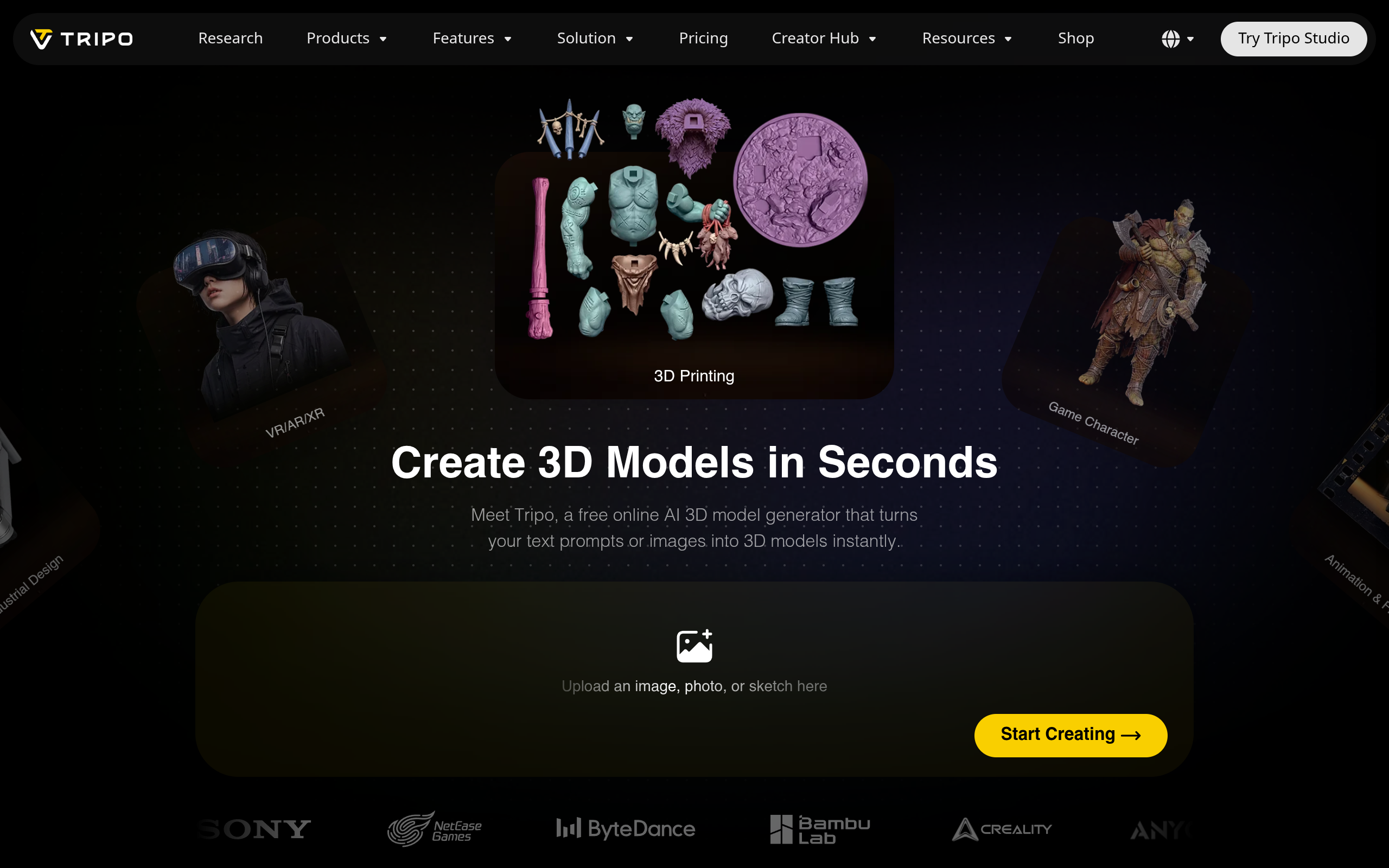
Tripo changes that. It is an AI 3D model generator at tripo3d.ai that turns a text prompt or an image into a textured 3D model in seconds. You describe the model, or upload a photo of the object, and Tripo builds the shape, the details, and the textures. The home page says it plainly: "Create 3D Models in Seconds." The same page claims more than 20 million creators and 200 million models made — a sign of how many people now make 3D this way.
The model is not a flat picture. It is a real 3D file you can rotate, export, print, or use in a game engine. Tripo exports GLB, FBX, OBJ, and USD files, and it connects with Unity, Unreal, Blender, Godot, Maya, 3ds Max, Cocos, and ZBrush. It also rigs and animates models, so a character can walk, and it prepares models for 3D printing in STL, 3MF, and OBJ formats.
In this guide, we explain what Tripo is, what each tool does, the real pricing and free-plan limits, and how to use it step by step. We also explain one important warning: the free plan is non-commercial, so you cannot sell what you make for free. We compare it with Meshy, Luma Genie, and Spline, so you can see which 3D tool fits your work. Prices change often, so always check the official Tripo pricing page before you buy.
 Try Tripo Free — Make Your First 3D Model →
In This Guide
- 1. What is Tripo?
- Tripo Plans at a Glance
- Key Features
- Tripo Pricing
- How to Use Tripo
- Tripo vs Alternatives
- Tripo for Everyday Jobs
- What Tripo Cannot Do
- Pros and Cons
- Who Should Use Tripo
- Frequently Asked Questions
- Final Thoughts
What is Tripo?
Tripo is an AI 3D model generator from VAST, a company that builds AI tools for 3D creation. It runs in your browser at tripo3d.ai, with a desktop Studio app for heavier work. You start with a text prompt or an image, and Tripo generates a 3D model with shape, detail, and textures. The model is ready to download, edit, animate, or print.
There are two ways to make a model. Text to 3D takes a written description — "a medieval knight with a sword and shield, game-ready, stylised" — and builds the model from nothing. Image to 3D takes a photo or a drawing and rebuilds it as a 3D object. Image to 3D is useful when you already have a product photo or a character drawing and you need a 3D version of it. Both ways give you a textured model in under a minute.
Tripo is more than a generator. The High Detail Model mode builds models with up to 2 million polygons, which is the level of detail a game or a film needs. Smart Mesh rebuilds the model as a clean quad mesh with 500 to 25,000 polygons, which is the clean geometry a game engine wants. Rig and animate adds a skeleton to a character so it can walk, run, or wave. PBR textures up to 8K give the model realistic materials — metal that shines, cloth that looks soft, and skin that looks alive.
Tripo is made for people who need 3D models but do not have a 3D artist: indie game developers, 3D artists who need a fast first draft, product designers, e-commerce sellers who want 3D product views, teachers, and 3D printing hobbyists. If you make one model a month, the free plan is enough to test it. If you make models every day, the paid plans are built for that volume. If you need a film-quality hero character with perfect anatomy, a human artist still wins. If you need a good game asset in a minute instead of a day, Tripo is built for that.
Start Free on Tripo — 200 Credits a Month →
Tripo Plans at a Glance
Tripo sells plans by credits. Every generation costs credits, and the plan you pick decides how many credits you get each month. The free plan is for testing, and the paid plans add commercial use, private models, and parallel tasks. Here is the comparison.
| Plan | Price | Credits | What you get | Best for |
|---|---|---|---|---|
| Free | $0 | 200 credits/month (about 13 models) | Public models, non-commercial use only | Testing Tripo |
| Pro | $20/month | 3,000 credits/month (about 200 models) | Private models, commercial use, 10 parallel tasks | Indie developers and regular creators |
| Max | $90/month | 25,000 credits/month (about 1,660 models) | Everything in Pro, 8K textures, highest volume | Studios and heavy users |
| Team | $55/seat/month (billed yearly) | Shared team credits | Team workspaces and shared assets | Small studios and teams |
One warning about commercial use: the home page FAQ says Tripo models are "generally available for commercial use," but the pricing page is clear — free plan models are public and non-commercial. The pricing page is the binding rule. If you want to sell a game, sell a 3D print, or use a model in a client project, you need Pro or a higher plan. Do not build a commercial project on the free plan and hope the FAQ protects you. It will not.
Key Features
Text to 3D
Text to 3D turns a written description into a 3D model. Describe the object, the style, and the details — "a cute robot toy, round body, big eyes, plastic material, stylised" — and Tripo builds the shape and the textures. The prompt is the skill: a clear prompt with the subject, the style, and the material makes a better model than a vague one. Text to 3D is the fastest way to test an idea, because you can generate ten versions of a character in ten minutes and keep the best one.
Best for: Game characters, props, product concepts, and any model that starts as an idea in words.
Free plan: The free plan gives you 200 credits a month, about 13 models — enough to test text to 3D properly.
How to Use: Write the prompt with the subject, the style, the material, and the use: "low-poly game asset" or "realistic product render." Generate three versions, pick the best shape, and re-generate with a better prompt if the details are wrong.
Image to 3D
Image to 3D turns a photo or a drawing into a 3D model. Upload a front view of a product, a character sketch, or a photo of an object, and Tripo rebuilds it in 3D. This is the tool for product work: a seller photographs a shoe, uploads the photo, and gets a 3D shoe for the shop page. It is also the tool for character work: draw a character on paper, upload the drawing, and get a 3D character to animate. A clear photo with a clean background gives a better model than a busy photo.
Best for: Product photos, character drawings, and any object you already have a picture of.
Free plan: Image to 3D is included in the free plan's 200 monthly credits.
How to Use: Upload a clear photo with a plain background and good light. Check the model from all sides after generation — the back of the model is guessed by the AI, and it may need a fix. Re-generate with a different angle if the back looks wrong.
High Detail Models and Smart Mesh
Tripo's High Detail Model mode builds models with up to 2 million polygons. That is the level of detail a close-up render or a film shot needs: every fold, every edge, and every small part is there. Smart Mesh does the opposite job: it rebuilds the model as a clean quad mesh with 500 to 25,000 polygons, which is the tidy geometry a game engine wants for real-time rendering. A game character needs Smart Mesh. A product render for a website needs High Detail. Tripo gives you both from the same generation.
Best for: Game assets that need clean geometry, and product renders that need fine detail.
Free plan: High Detail and Smart Mesh are available to test on the free plan. Heavy use needs a paid plan.
How to Use: Generate the model first, then choose the mesh: Smart Mesh for a game, High Detail for a render or a print. Check the polygon count before export — a game engine slows down if the count is too high.
Rig and Animate
Rig and animate adds a skeleton to a character model, so the character can move. A rigged character can walk, run, wave, or dance, and the animation can be exported with the model. This is the feature that turns a static statue into a game character. Without a rig, a character is a sculpture. With a rig, it is an actor. Tripo's rigging is automatic — the AI finds the arms, the legs, and the head, and builds the skeleton for you.
Best for: Game characters, animations, and any character that needs to move.
Free plan: Rigging is available to test on the free plan. Regular animation work needs a paid plan.
How to Use: Generate a character with clear arms and legs in a neutral pose. Run the rig tool, check that the joints sit on the elbows and knees, and test a simple walk animation. If a joint is in the wrong place, fix the pose and re-rig.
PBR Textures up to 8K
PBR — physically based rendering — textures make a model look real. A metal part shines like metal, a cloth part looks soft, and a plastic part looks smooth. Tripo generates PBR textures up to 8K resolution on the Max plan, which is the detail a close-up render needs. Good textures are half of a good model: a perfect shape with flat colours looks like a toy, while a simple shape with great textures looks real.
Best for: Product renders, close-up shots, and any model the viewer sees up close.
Free plan: Standard textures are included on the free plan. 8K textures need the Max plan.
How to Use: Generate the model, then check the textures in a preview with good light. If the material looks wrong — metal that looks like plastic, for example — adjust the material settings or re-generate the texture.
3D Printing
Tripo prepares models for 3D printing in STL, 3MF, and OBJ formats. A model made for a game is hollow and full of thin parts that a printer cannot make. A print-ready model is solid, watertight, and thick enough to hold its shape. Tripo's printing tools check the model and fix the problems that break a print. It is the bridge between AI generation and a physical object on your desk.
Best for: Figurines, prototypes, replacement parts, and hobby printing.
Free plan: Print export is available on the free plan for testing. Regular printing work needs a paid plan.
How to Use: Generate the model, check it for thin parts and holes, and export as STL. Slice it in your printer software and check the preview before you print — a failed print wastes hours and filament.
Game Engine and DCC Bridges
Tripo exports GLB, FBX, OBJ, and USD files, and it connects directly with Unity, Unreal, Blender, Godot, Maya, 3ds Max, Cocos, and ZBrush. The bridge matters because a model that only works in one tool is a dead end. With the bridges, a model generated in Tripo can go straight into a Unity game, an Unreal scene, or a Blender project without a manual export and import step. The workflow is: generate in Tripo, send to your engine, and keep working.
Best for: Game developers and 3D artists who already work in Unity, Unreal, or Blender.
Free plan: Standard exports are included on the free plan.
How to Use: Generate the model, pick the export format your engine wants — GLB for web, FBX for Unity and Unreal — and send it through the bridge. Check the scale and the materials in the engine before you build the scene.
Tripo Pricing
Tripo's free plan costs $0 and gives you 200 credits a month, enough for about 13 models. The free models are public — anyone can see them — and non-commercial, which means you cannot sell them or use them in a client project. The free plan is for learning and testing, not for business.
Pro costs $20 a month and gives you 3,000 credits a month, about 200 models. Pro makes your models private, allows commercial use, and lets you run 10 tasks in parallel. For an indie developer or a regular creator, Pro is the plan that turns Tripo from a toy into a tool. Max costs $90 a month and gives you 25,000 credits, about 1,660 models, and 8K textures. Max is for studios and heavy users who generate models all day. Team costs $55 per seat a month when billed yearly, with shared team credits and workspaces.
Which plan should you buy? Start free and use the 200 credits to make 13 models. If you finish the month with credits left, the free plan is enough for you. If you run out in the first week, Pro is the right next step — 3,000 credits is fifteen times the free amount, and commercial use is included. If Pro runs out too, Max is the answer. Most indie developers will be happy on Pro, and the $20 a month is cheaper than one hour of a 3D artist's time.
How to Use Tripo
You do not need 3D skills to make your first model. Follow these steps, and the same flow works for every model after it.
Step 1: Sign up free. Open tripo3d.ai and create your free account. You get 200 credits a month, about 13 models. No credit card is needed to start.
Step 2: Choose text or image. For your first model, pick text to 3D — it is the fastest way to learn. Pick image to 3D when you already have a photo or a drawing of the object.
Step 3: Write a clear prompt. Describe the subject, the style, and the material: "a wooden chair, simple design, product render style." A clear prompt makes a better model than a long vague one.
Step 4: Generate and review. Generate three versions and rotate each model to check all sides. The front may look perfect while the back is broken — check every angle before you keep a model.
Step 5: Pick the mesh. Choose Smart Mesh for a game asset or High Detail for a render or a print. Check the polygon count before you export.
Step 6: Rig it if it moves. For a character, run the rig tool and test a simple animation. Fix the joints if they sit in the wrong place.
Step 7: Export and use it. Export GLB for the web, FBX for Unity and Unreal, or STL for 3D printing. Open the file in your engine or slicer and check the scale before you build.
Tripo vs Alternatives
Tripo is not the only AI 3D tool. Here is how it compares with the tools people usually consider, so you can pick the right one for your work.
| Tool | Best for | Free plan | Main weakness |
|---|---|---|---|
| Tripo | Fast text and image to 3D with game exports | 200 credits/month, about 13 models | Free models are public and non-commercial |
| Meshy | Text to 3D with strong texture quality | Free credits to start | Fewer DCC bridges than Tripo |
| Luma Genie | Quick 3D from text with a simple interface | Free credits to start | Less control over mesh and rigging |
| Spline | 3D design for the web, in the browser | Free tier available | Design tool, not an AI generator |
| Blender (manual) | Full control over every vertex | Free forever | Takes days to learn and hours per model |
Meshy is the closest rival: strong text to 3D with excellent textures, and a favourite of many game artists. The difference is the ecosystem — Tripo's DCC bridges, rigging, and 3D printing tools make it a more complete pipeline, while Meshy is a stronger pure generator. Luma Genie is the simplest tool for a quick model, but it gives you less control over the mesh and the rig. Spline is a design tool for web 3D, not a generator — you build the model yourself, which is slower but gives full control. Blender is free forever and can do anything, but a single character takes days by hand, while Tripo makes it in a minute.
Tripo wins when you need many models fast, with game-ready exports and a clear path to Unity, Unreal, or a 3D printer. It wins on volume: Pro gives you about 200 models a month for $20. It loses when you need one perfect hero model with exact anatomy, or when you need full manual control — in that case, a human artist in Blender is still the answer.
Tripo for Everyday Jobs
Build game assets for an indie game. A solo developer needs fifty props for a game level: chairs, crates, barrels, lamps, and rocks. Tripo generates them all in an afternoon, exports them as FBX, and drops them into Unity. The game gets a full world without a 3D artist on the team.
Make a product 3D view for a shop. A seller photographs a shoe, uploads the photo to Tripo, and gets a 3D shoe for the product page. Customers rotate the shoe, see it from every angle, and buy with more confidence.
Print a figurine for a gift. A hobbyist generates a character from a drawing, exports it as STL, and prints it on a home 3D printer. The figurine is a personal gift that no shop sells.
Prototype a product idea. A designer has an idea for a lamp. Tripo makes a 3D lamp from a text prompt, the designer prints a small prototype, and the team holds the idea in their hands before they spend money on a real prototype.
Make a character for an animation. A creator generates a character, rigs it, and animates a short walk cycle. The character stars in a YouTube Short, and the whole job takes an evening instead of a week.
What Tripo Cannot Do
Tripo is fast, but it has limits you should know before you build a project on it. First, it cannot make a perfect model every time. The AI guesses the parts it cannot see — the back of a model, the inside of a shape, the small details — and the guess is sometimes wrong. Check every model from all sides before you use it.
Second, it cannot replace a human artist for hero work. A main character, a mascot, or a product that must match a brand exactly needs a human artist who can fix every detail. Tripo is a fast first draft, not a finished masterpiece.
Third, the free plan is non-commercial. You cannot sell free-plan models, use them in a client project, or put them in a game you sell. The pricing page is the rule, not the FAQ. If you want to earn money from a model, you need Pro or higher.
Fourth, Tripo cannot fix a bad prompt. A vague prompt makes a vague model. "A cool monster" gives a random monster. "A friendly green monster with three eyes, round body, and small arms, stylised game character" gives a monster you can use. The prompt is the skill — learn it, and the models get better.
Pros and Cons
Pros:
- Text and image to 3D in seconds — a model in a minute instead of a day
- High Detail up to 2M polygons and Smart Mesh for clean game geometry
- Rig and animate turns a static model into a moving character
- PBR textures up to 8K and 3D printing export in STL, 3MF, and OBJ
- Exports GLB, FBX, OBJ, and USD, with bridges to Unity, Unreal, Blender, and more
- Free plan with 200 credits a month, about 13 models
Cons:
- Free models are public and non-commercial — you need Pro to sell your work
- The AI guesses hidden parts, and the back of a model can be wrong
- Not a replacement for a human artist on hero characters
- Needs a clear prompt — vague prompts make unusable models
- 8K textures need the Max plan at $90 a month
Who Should Use Tripo
Tripo fits indie game developers who need many assets fast, 3D artists who want a quick first draft, product designers who need a 3D view, e-commerce sellers who want interactive product pages, and 3D printing hobbyists who want a model to print. If you make 3D content every week and you do not have a full-time 3D artist, Tripo is a strong buy.
Tripo is not the right choice if you need one perfect hero model with exact anatomy, if you need full manual control over every vertex, or if you only make one model a year — in that case, the free plan is enough, or a human artist is the better answer. And it is not the right choice if you plan to sell free-plan models, because the free licence forbids commercial use.
Tripo Free Workflow
You can get real value from Tripo without paying. Sign up free and use the 200 monthly credits wisely. On day one, generate three versions of one model and keep the best. On day two, try image to 3D with a photo you already have. On day three, test Smart Mesh and export a game-ready file. On day four, try rigging a character and a simple animation. By the end of the week, you will know whether Tripo fits your work — and you will have spent nothing.
The free workflow works best when you plan the model before you generate it. Write the prompt on paper first, list the subject, the style, and the material, and generate only when the plan is clear. Save every good prompt in a document, so the next model starts from a prompt that already works. And never waste credits on a model you have not planned — a planned prompt gives a usable model in one or two tries.
Free vs Paid
The free plan is for testing and learning: 200 credits a month, about 13 models, public and non-commercial. It is enough to learn the tool and to make models for fun. Pro at $20 a month is the real step up: 3,000 credits (about 200 models), private models, commercial use, and 10 parallel tasks. Max at $90 a month is for studios: 25,000 credits, about 1,660 models, and 8K textures.
The honest test is simple. Count how many models you make in a month, and count how many of them you sell or use in a paid project. If you make fewer than 13 models and none of them are commercial, the free plan is enough. If you make more than 13, or if any model is commercial, Pro pays for itself — $20 is less than one hour of a 3D artist's time, and it gives you 200 models.
Common Mistakes
Using free models commercially. The most expensive mistake is building a game or a client project on free-plan models. The licence is non-commercial, and the pricing page is the rule. Buy Pro before you sell anything.
Checking only the front. The AI guesses the back of the model, and the guess is often wrong. Rotate every model and check all sides before you export it.
Writing a vague prompt. "A cool monster" gives a random monster. Write the subject, the style, the material, and the use in every prompt.
Exporting the wrong format. GLB is for the web, FBX is for Unity and Unreal, STL is for printing. Export the format your tool wants, and check the scale in the engine before you build the scene.
Skipping the mesh choice. A 2M-polygon model will slow a game to a crawl. Use Smart Mesh for games and High Detail for renders and prints. The polygon count is not a detail — it decides whether the model works.
Frequently Asked Questions
1. What is Tripo?
Tripo is an AI 3D model generator from VAST that turns a text prompt or an image into a finished 3D model in seconds. It exports GLB, FBX, OBJ, and USD files, and it works with Unity, Unreal, Blender, Godot, Maya, 3ds Max, Cocos, and ZBrush.
2. Is Tripo free?
Yes, the free plan gives you 200 credits a month, about 13 models. The free models are public and non-commercial — you cannot sell them or use them in a client project.
3. How much does Tripo cost?
Pro costs $20 a month with 3,000 credits (about 200 models), private models, commercial use, and 10 parallel tasks. Max costs $90 a month with 25,000 credits (about 1,660 models) and 8K textures. Team costs $55 per seat a month billed yearly.
4. Can I sell models I make with Tripo?
Yes, but only on a paid plan. Free-plan models are non-commercial. Pro, Max, and Team allow commercial use. The pricing page is the binding rule, not the home page FAQ.
5. Can Tripo make a model from a photo?
Yes, with image to 3D. Upload a clear photo with a plain background, and Tripo rebuilds the object as a 3D model. Check the back of the model after generation — the AI guesses the parts it cannot see.
6. Can Tripo animate a character?
Yes. Rig and animate adds a skeleton to a character model so it can walk, run, or wave. The animation can be exported with the model for use in a game or a video.
7. Can I 3D print a Tripo model?
Yes. Tripo exports STL, 3MF, and OBJ files for 3D printing. Check the model for thin parts and holes, and preview it in your slicer software before you print.
8. Does Tripo work with Unity and Unreal?
Yes. Tripo exports FBX for Unity and Unreal, GLB for the web, and it has direct bridges to Unity, Unreal, Blender, Godot, Maya, 3ds Max, Cocos, and ZBrush.
Related Guides


Open Tripo Free — Create Your First 3D Model →
Final Thoughts
Tripo is one of the fastest 3D tools of 2026 because it turns days of work into seconds. A game developer gets fifty props in an afternoon. A seller gets a 3D product view from one photo. A hobbyist gets a figurine to print. The free plan is enough to learn the tool, and Pro at $20 a month is cheaper than one hour of a 3D artist's time for about 200 models.
It is not perfect. The free plan is non-commercial, the AI guesses the parts it cannot see, and a hero character still needs a human artist. But those are limits you can plan around: buy Pro before you sell anything, check every model from all sides, and use Tripo for volume while a human handles the hero work. Start free, make one real model for a project you actually have, and judge the result. If the model is good enough to use, Tripo is worth a paid month. If it needs heavy fixing, you have lost nothing but an hour — and you have learned exactly what the tool can and cannot do.
Either way, you now know exactly what Tripo does, what it costs, and who it is for. Try the free plan, make one real model, and decide from the result — not from the promise.