
Disclosure: AI Tricks is reader-supported. This guide contains an affiliate link to YouCam Online Editor. If you sign up through our link, we may earn a commission at no extra cost to you. It does not change our review or the price you pay.
Fixing a photo used to mean opening a heavy desktop app, learning layers and masks, and spending an hour on one image. YouCam Online Editor takes the other path. You open it in your browser, drop in a photo, and the AI does the work — it sharpens a blurry shot, removes a stranger from the background, swaps a messy backdrop, or smooths skin in a portrait, all in a few clicks.
YouCam comes from Perfect Corp, the company behind the YouCam Perfect and YouCam Makeup apps, which have been downloaded hundreds of millions of times on phones. The online editor brings that same AI to the browser, with a wider set of tools: photo enhancement, object removal, background editing, AI art, hairstyle try-on, clothes try-on, and image-to-video animation. It is built for everyday creators, small business owners, and social media managers who need a good result fast — not for professionals who need pixel-level control.
In this guide, we explain what YouCam Online Editor is, its key features, the real pricing, and how to use it step by step. We also compare it with Canva, Fotor, Pixlr, and Photopea, so you can see which tool fits your work. Prices change often, so always check the official YouCam pricing page before you buy.
 Try YouCam Free — Open Editor →
In This Guide
- 1. What is YouCam Online Editor?
- Key Features
- YouCam Pricing
- How to Use YouCam Online Editor
- YouCam vs Alternatives
- Pros and Cons
- Who Should Use YouCam Online Editor
- Frequently Asked Questions
- Final Thoughts
What is YouCam Online Editor?
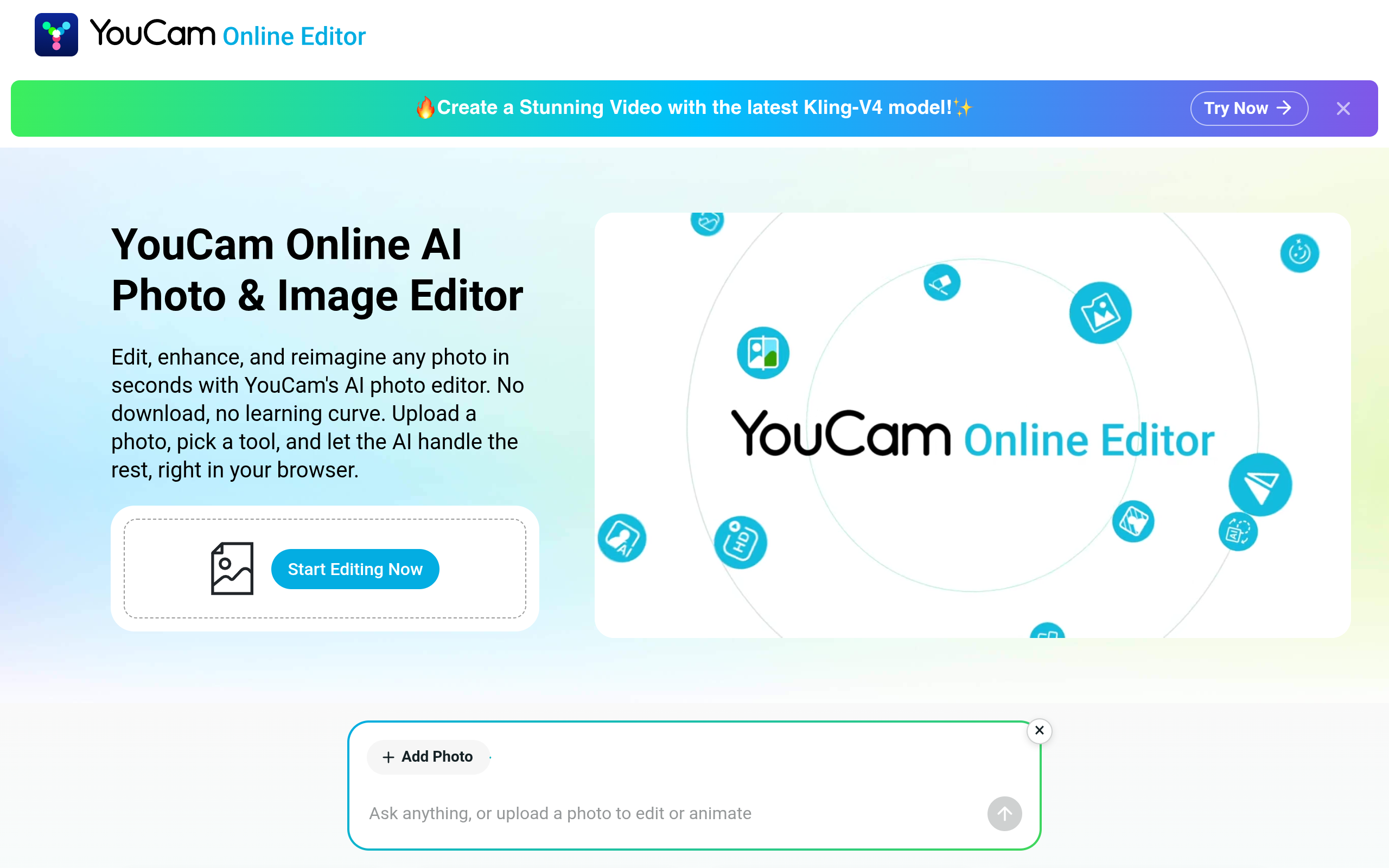
YouCam Online Editor is an AI photo and image editor that runs entirely in your browser at yce.perfectcorp.com. Its home page says it best: "Edit, enhance, and transform photos instantly with YouCam's AI photo editor. No download needed!" You upload a photo, pick a tool, and let the AI handle the rest — right in your browser, on any computer, tablet, or smartphone.
The editor is made by Perfect Corp, a company listed on the New York Stock Exchange that builds AI beauty and photo technology for brands and consumers. Its YouCam apps are some of the most downloaded photo apps in the world. The online editor is the web version of that technology: the same AI enhancement and retouching, plus tools that only make sense on the web, like batch editing and image-to-video animation.
Perfect Corp is not a small startup. It is listed on the New York Stock Exchange, and its AI technology powers virtual try-on tools for beauty brands around the world. That scale matters for a free tool: the company can afford to run heavy AI in the cloud and give away 5 starter credits, because the same technology earns money from brands and from the mobile apps. It also means the editor is unlikely to shut down suddenly, the way small AI tools sometimes do.
What can you make with it? Sharper versions of blurry photos, clean product shots with the background removed, portraits with natural skin retouching, restored old photos, colorized black-and-white pictures, AI-generated art from a text prompt, hairstyle and outfit try-ons, and short animated videos from a still image. It is built for single photos and small batches: you fix one image at a time, or a small set, then download the result.
YouCam is made for people who take photos for social media, online shops, and everyday use: Instagram and TikTok creators, Etsy and Shopify sellers who need clean product photos, small business owners who need a quick flyer image, and anyone with a blurry or messy photo they want to save. If you need layered, print-ready design work, a desktop editor still wins. If you want a good photo in a minute, YouCam is built for that.
Key Features
YouCam packs a lot into one browser tab. Here are the features that matter most.
1. AI Photo Enhancer: unblur and sharpen any photo
This is the feature most people come for. You upload a blurry, soft, or low-resolution photo and the AI rebuilds the lost detail — it sharpens soft edges, reduces noise, and restores faces and textures. It works on old photos, screenshots, and phone shots taken in bad light. On the free plan you can enhance about 2 photos a day; Plus raises that to 5 a day, and Pro makes it unlimited.
2. AI Object Remover: erase people and distractions
Brush over an unwanted person, a power line, a bin, or a photobomber, and the AI erases it and rebuilds the background behind it — matching the texture and lighting so the edit looks clean and natural. It is the fastest way to rescue a good photo that has one bad detail in it.
3. Background remover and background replacement
YouCam removes the background from a photo in one click, so you can put your product or portrait on a clean white backdrop, a colour, or a new scene. For online sellers, this is the tool that turns a kitchen-table photo into a shop-ready product shot. It also handles hair and soft edges better than most free removers.
4. AI Face Retouch and Face Reshape
For portraits, YouCam offers AI face retouching that smooths skin while keeping it natural, plus face reshaping for small adjustments to the jaw, eyes, and smile. The retouching is deliberately light — it cleans up blemishes and shine without the plastic, airbrushed look that cheap face apps produce.
5. AI Photo Fixer and photo restoration
The AI Photo Fixer repairs damaged and old photos: it fixes scratches, fading, and blur in one pass, and it can colorize black-and-white photos. If you have a box of old family photos, this is the tool that brings them back — scan them, upload them, and let the AI do the restoration.
6. AI art generation and image extension
YouCam also generates images from text prompts, so you can create a background, a poster, or a social post image from a sentence. Its image extension tool grows a photo beyond its edges — useful when a shot is cropped too tight for an Instagram post or a banner.
7. Image to Video: animate a still photo
YouCam can turn a single photo into a short video. The AI reads the depth and subjects in your still image and adds realistic movement — flowing water, drifting clouds, a slow cinematic camera pan. It is built for eye-catching social media content, and the home page now promotes the latest Kling-V4 model for this feature. Video generation costs credits, so check the cost before you run it.
8. AI Hairstyle and AI Clothes try-on
Two try-on tools set YouCam apart from plain editors. The AI Hairstyle Changer lets you try on 200 plus haircuts on your own photo — one hairstyle costs 2 credits. AI Clothes lets you try an outfit on the same shot. These are fun for personal use and genuinely useful for salons and fashion sellers who want to show a look before the customer commits.
9. AI Portrait and headshots
YouCam's AI Portrait tool turns a casual selfie into a clean, professional-looking headshot. It fixes the lighting, sharpens the face, and tidies the background — the kind of result you need for a LinkedIn photo or a team page, without a studio shoot.
10. Batch editing and no-install workflow
Because YouCam runs in the browser, there is nothing to install and no powerful computer needed — all heavy AI work happens on Perfect Corp's cloud servers. Paid plans add batch image editing, so you can apply the same fix to many photos at once. Your photos are processed on secure servers and automatically deleted after a short period, and Perfect Corp says it does not use your personal images to train AI models without your consent.
Try YouCam Free — Open Editor →
YouCam Pricing
YouCam runs on a freemium credit model. Many tools are free with daily limits, while heavier AI actions use credits or need a subscription. There are two prices for each plan: the monthly price, and a lower price if you pay yearly. The pricing page shows prices in your local currency — the figures below are the US dollar prices reported by independent reviews of the official pricing page in October and November 2026. Prices change often, so check the official YouCam pricing page before you buy.
| Plan | Price per Month | Credits per Month | Watermark | Best For |
|---|---|---|---|---|
| Free | $0 | 5 starter credits, then daily limits | Yes, on free exports | Trying YouCam first |
| Plus | $9.99 per month, or $3.33 per month billed yearly | 100 | No | Regular photo fixes |
| Pro | $19.99 per month, or $5.83 per month billed yearly | 300, plus unlimited enhancement and colorization | No | Creators and sellers who edit daily |
Free plan: Yes, YouCam is free to start — no download and no credit card needed. New users get 5 free credits to try the full suite of AI tools, including photo enhancement, object removal, background editing, and AI art generation. After that, many tools stay free with daily limits — about 2 photo enhances and 3 colorizes a day. Free exports carry a watermark, and commercial use is not included on the free plan.
Plus ($9.99 a month, or $3.33 a month billed yearly): You get 100 credits a month, expanded daily limits across the tools, batch image editing, and watermark-free exports. Plan credits stay usable for 60 days after they are granted. This is the plan for someone who fixes photos a few times a week and wants clean exports.
Pro ($19.99 a month, or $5.83 a month billed yearly): You get 300 credits a month, plus unlimited photo enhancement and colorization, and a 30 percent discount on pay-as-you-go credits. Only the Pro plan permits commercial use of the output under Perfect Corp's terms — that matters if you edit photos for clients or sell products with the images. This is the best plan for creators and sellers who edit every day.
Credit packs (pay as you go): If you do not want a subscription, you can buy credits one time — about $23.99 to $29.99 for 100 credits, depending on the current promotion. Bought credits last up to one year. Each AI action costs a set number of credits: one hairstyle costs 2 credits, and video generation costs 5 to 240 credits per video depending on the length and model.
Three things to know before you pay: First, the free plan's 5 credits run out fast — two hairstyles, or a couple of video tests, and they are gone. Second, free exports have a watermark, so do not plan to post a free export for your business. Third, the price you see depends on your region and currency — some pages show euros instead of dollars — so always confirm the price in your own currency on the official YouCam pricing page before you subscribe.
How to Use YouCam Online Editor
Using YouCam is simple: you upload a photo, pick a tool, and download the result. Here is the full flow, step by step.
- Open the editor and sign up. Go to YouCam Online Editor and create a free account. You do not need a credit card. You get 5 starter credits to try the tools.
- Upload your photo. Click Start Editing Now and drop in a JPG or PNG photo. You can also use the "Ask anything, or upload a photo to edit or animate" box on the home page and describe what you want in plain words.
- Pick the job, not the tool. Blurry photo? Choose AI Photo Enhancer. Someone in the way? Choose AI Object Remover. Messy background? Choose background removal. Portrait that needs a polish? Choose AI Face Retouch. Picking the job first saves credits.
- Let the AI run, then check the result. Most tools finish in seconds. Look at the result with fresh eyes — check the face, the edges, and the background. If the enhancement is too strong, lower it; if an object is still visible, brush over it again.
- Fix in the right order. Work from repair to polish: first repair with the AI Photo Fixer or sharpen with the Photo Enhancer, then remove distractions, then retouch lightly, and finish with creative effects or a video. This order stops you retouching a flaw that a repair would have removed.
- Try a try-on if you need it. For a new hairstyle, open the AI Hairstyle Changer and pick from 200 plus styles — each one costs 2 credits. For an outfit, open AI Clothes on the same photo.
- Animate it if you want a video. Open Image to Video, pick a movement style, and check the credit cost before you generate. Video costs more credits than a photo fix, so test with a short clip first.
- Download your photo. Save the result. On the free plan your export carries a watermark — on Plus and Pro it does not. If you need the photo for commercial use, you need the Pro plan.
- Repeat with your next photo. Your daily free limits reset each day, and your plan credits refill each month. For a batch of product photos, use the batch editing tool on a paid plan instead of fixing them one by one.
Tip for your first project: start with your worst photo, not your best one. Upload a blurry or messy shot, run the Photo Enhancer, then the Object Remover, and compare the before and after. That one test tells you more about YouCam than any feature list — and it only costs a couple of your 5 free credits. Only then decide whether Plus at $3.33 a month billed yearly is worth it for you.
Try YouCam Free — Open Editor →
YouCam vs Alternatives
YouCam is not the only browser photo editor. Here is how it compares with the three closest alternatives: Canva for design and templates, Fotor for one-click fixes, and Pixlr for free layered editing. Prices below are from October and November 2026 checks of each tool's official pricing page — always confirm the current price on the official site before you buy.
| Tool | Best For | Free Plan | Paid From | Standout Feature |
|---|---|---|---|---|
| YouCam Online Editor | Quick AI photo fixes, try-ons, image to video | Yes, 5 credits + daily limits, watermark | $3.33 per month billed yearly | AI enhancer, hairstyle and clothes try-on, image to video |
| Canva | Design, templates, social posts | Yes, templates and basic tools | $15 per month (Pro) | Huge template library, Magic Studio AI |
| Fotor | One-click fixes for beginners | Yes, normal-resolution exports | $8.99 per month (Pro) | AI enhancer, batch edits, headshots |
| Pixlr | Free browser editing with layers | Yes, with ads | €1.99 per month billed yearly (Plus) | Layer-based editor, generative fill |
| Photopea | Browser-based PSD editing | Yes, full editor with ads | About $5 per month (Premium) | Opens and saves PSD files, no install |
Choose Canva if your work is design, not just photo fixing — social posts, presentations, and flyers from templates, with AI tools inside the same editor. Canva's photo tools are simpler than YouCam's, but its template library is far bigger. Pro is $15 a month.
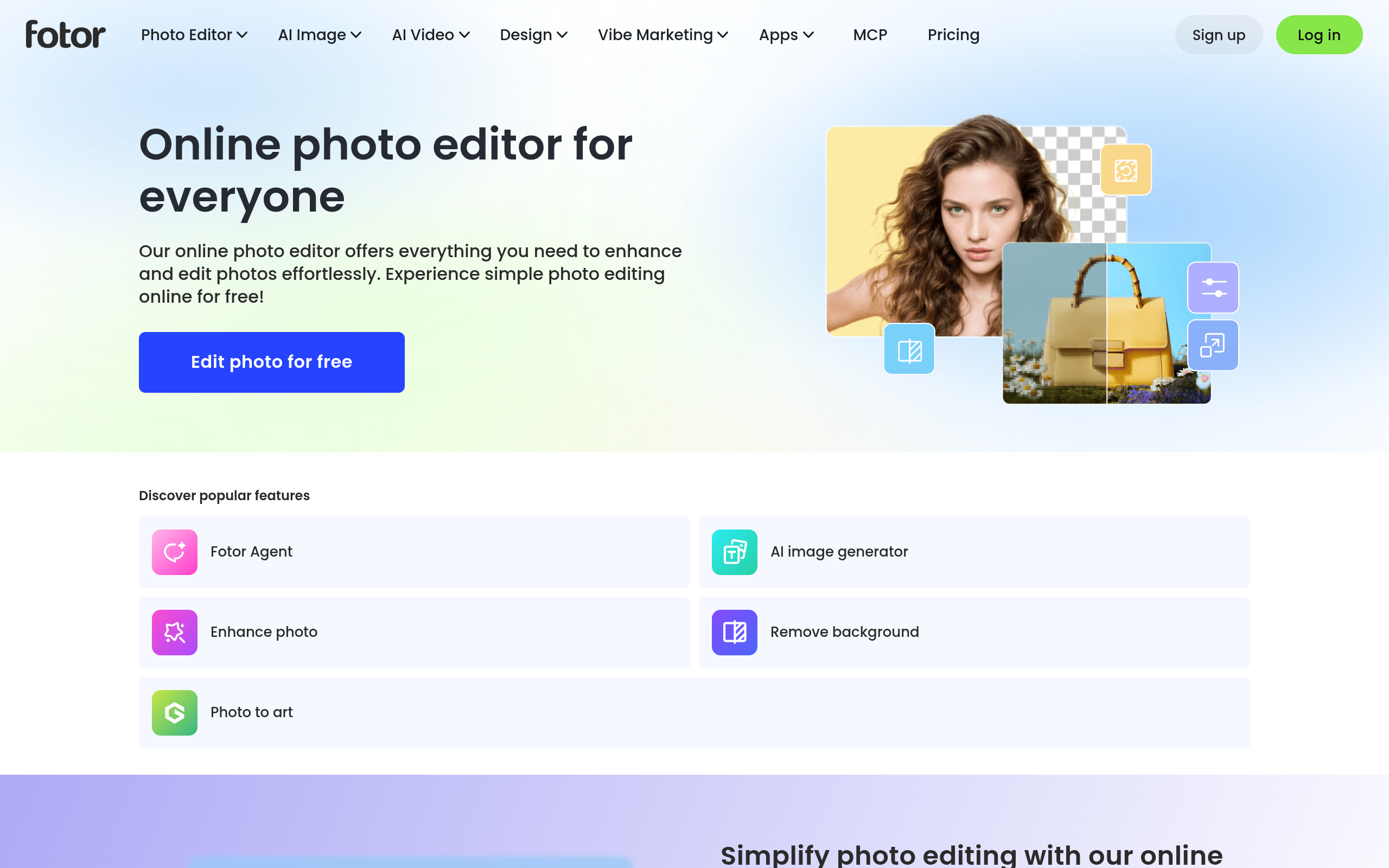
Choose Fotor if you want the simplest one-click fixes — an AI enhancer, Magic Eraser, background removal, and batch edits, with a free plan that exports without watermarks on some tools. Pro is $8.99 a month or $47.99 a year, and HD export is paid. Fotor has no try-on tools and no image-to-video feature.
Choose Pixlr if you want a free Photoshop-style editor in the browser — layers, generative fill, object removal, and background removal, with no account needed to start. The free plan shows ads and has thin AI credits; Plus is €1.99 a month billed yearly. Choose Photopea if you work with PSD files — it opens and saves them in a browser tab for free, with ads, and Premium is about $5 a month. Neither Pixlr nor Photopea has YouCam's one-click enhancer or try-on tools.
Choose YouCam if you want the fastest fix for a single photo — unblur it, remove an object, swap the background, retouch a face — plus try-ons and image-to-video in the same place, all without installing anything.
YouCam for Everyday Jobs
YouCam is a general tool, but it shines in a few specific jobs. Here is how different people actually use it.
Social media creators
If you post every day, YouCam saves you the most time. You shoot a photo on your phone, upload it, run the enhancer, remove a distraction, and post it — the whole fix takes under a minute. The Image to Video tool is the bonus: turn your best still photo into a short animated clip and it stands out in a feed full of static images. The catch is the watermark on the free plan, so creators who post daily usually take Plus to get clean exports.
Online sellers
For Etsy, Shopify, and Facebook Marketplace sellers, the background remover is the money feature. A product photo with a clean white background looks professional and sells better than a kitchen-table shot. Batch editing on a paid plan lets you clean a whole set of product photos at once instead of fixing them one by one. Remember that commercial use needs the Pro plan — if you sell with these photos, Pro is the honest choice.
Restoring old family photos
The AI Photo Fixer and the colorize tool are made for old photos. Scan a faded print, upload it, and let the AI repair scratches and fading, then colorize it if it was black and white. The free plan's daily limits are enough for a few photos a day, so restoring a family album is a slow, free project — a couple of photos each evening until the box is done.
Small business owners
A cafe, a salon, or a small shop needs flyers, menus, and social posts — not a design department. YouCam handles the photo part: clean up a photo of your shop, remove the background from a product shot, or make a quick AI-generated background for a promotion. Pair it with Canva for the text and layout, and you have a complete workflow without hiring anyone.
What YouCam cannot do
YouCam is not a replacement for Photoshop. It has no layers, no masks, and no precise selection tools. It cannot do complex composites, print colour management, or detailed retouching where you control every pixel. It also cannot edit video timelines — it animates single photos, nothing more. If your work needs any of those, use YouCam for the quick fix and a desktop editor for the fine work.
Pros and Cons
Pros
- Nothing to install — it runs in any browser, on any computer, tablet, or phone.
- AI Photo Enhancer genuinely rebuilds detail in blurry and low-resolution photos.
- One-click object removal and background removal that look clean and natural.
- Hairstyle and clothes try-on tools that no other browser editor offers in one place.
- Image to Video turns a still photo into a short animated clip for social media.
- Free to start with 5 credits and no credit card, plus daily free limits after that.
- Very cheap paid plans — Plus from $3.33 a month billed yearly.
- Photos are processed on secure servers and deleted after a short period, and Perfect Corp says it does not train AI on your images without consent.
- Batch editing on paid plans for sellers with many product photos.
- High user rating — 4.9 out of 5 from more than 1 million ratings on its home page.
Cons
- Free exports carry a watermark, so free results are not usable for business posts.
- The 5 free credits run out fast — two hairstyles, or a couple of video tests, and they are gone.
- Commercial use is only allowed on the Pro plan, not on Free or Plus.
- Credit costs are hard to predict — video generation can cost 5 to 240 credits per video.
- Plan credits stay usable for only 60 days after they are granted, so they do not pile up.
- It is built for quick fixes — if you need layers, masks, and pixel-level control, a desktop editor still wins.
- Prices vary by region and currency, and some pages show euros instead of dollars.
- Some users report that AI edit limits changed after they subscribed — check the current limits on the pricing page.
Who Should Use YouCam Online Editor
YouCam is best for: Instagram and TikTok creators who need a quick, good-looking photo fix; Etsy and Shopify sellers who need clean product photos with the background removed; small business owners who need a flyer or social post image in minutes; and anyone with a blurry, messy, or old photo they want to save. The try-on tools also suit salons and fashion sellers who want to show a look before the customer commits.
Skip YouCam if: you need layered, print-ready design work — Photoshop or Photopea is stronger there. Skip it if you need to edit hundreds of photos a day with no credit meter — the daily limits and credits will slow you down. Skip it if you need commercial use on a free plan — only Pro allows that. And skip it if you want a full video editor — YouCam animates single photos, it does not edit video timelines.
Our take: YouCam gets the everyday photo job right. The enhancer is real, the object remover is fast, and the try-on tools are genuinely different from what other browser editors offer. The free plan is a proper test — 5 credits, no card — and Plus at $3.33 a month billed yearly is cheap for what it removes: the watermark and the daily limits. Just remember the two rules: free exports have a watermark, and commercial use needs Pro. Test it on your worst photo first, and decide from the result.
Try YouCam Free — Open Editor →
Frequently Asked Questions
1. Is YouCam Online Editor really free?
Yes, to start. You get 5 free credits with no credit card, and many tools stay free with daily limits — about 2 photo enhances and 3 colorizes a day. Free exports carry a watermark, and heavier AI actions need credits or a paid plan.
2. How much does YouCam cost?
Plus is $9.99 a month, or $3.33 a month billed yearly, for 100 credits a month and watermark-free exports. Pro is $19.99 a month, or $5.83 a month billed yearly, for 300 credits a month, unlimited photo enhancement and colorization, and commercial use. You can also buy credit packs for about $23.99 to $29.99 per 100 credits. Prices change often, so check the official pricing page before you buy.
3. Does YouCam add a watermark?
Yes, on the free plan. Free exports carry a YouCam watermark. Plus and Pro exports do not. If you need a clean export for a business post, you need a paid plan.
4. Can I use YouCam photos commercially?
Only on the Pro plan. Under Perfect Corp's terms, commercial use of the output is permitted on Pro, not on the Free or Plus plans. If you edit photos for clients or sell products with the images, you need Pro.
5. Do I need to download anything?
No. YouCam Online Editor runs entirely in your browser. All heavy AI processing happens on Perfect Corp's cloud servers, so it works on almost any standard computer, tablet, or smartphone.
6. How many free credits do I get?
New users get 5 free credits at sign-up. One hairstyle costs 2 credits, so 5 credits buy two hairstyles. After the starter credits, many tools stay free with daily limits, and you can buy credit packs or subscribe for more.
7. Can YouCam fix a blurry photo?
Yes. The AI Photo Enhancer rebuilds lost detail, sharpens soft edges, and reduces noise in low-resolution or out-of-focus images. It works best on mildly blurry photos — a photo that is completely out of focus cannot be fully recovered by any tool.
8. Can YouCam turn a photo into a video?
Yes. Its Image to Video tool analyzes the depth and subjects in a still image and adds realistic movement, like flowing water or a slow camera pan. Video generation costs credits — from 5 to 240 credits per video depending on length and model — so check the cost before you run it.
9. Is my photo safe with YouCam?
Perfect Corp says your photos are processed securely on its servers and automatically deleted after a short period, and it does not use your personal images to train AI models without your consent. Read the privacy policy on the official site for the full details.
10. Who is YouCam best for?
Social media creators, online sellers, and small business owners who need quick, good-looking photo fixes without installing software. It is not built for professional retouchers who need layered control — for that work, Photoshop or a Retouch4me-style plugin fits better.
11. Can YouCam edit many photos at once?
Yes, on paid plans. Batch image editing lets you apply the same fix to many photos at once, which is useful for product photos. On the free plan you edit one photo at a time, within the daily limits.
12. What is the Kling-V4 video feature on the home page?
The home page promotes creating videos with the latest Kling-V4 model. It is YouCam's image-to-video feature: you upload a still photo and the AI adds movement to it, using the Kling video model underneath. Video generation costs credits, from 5 to 240 credits per video depending on the length and model, so check the cost before you run it.
Related Guides


Try YouCam Free — Open Editor →
Final Thoughts
YouCam Online Editor is one of the easiest AI photo editors of 2026 because it knows what it is for. Instead of trying to be a full design suite, it is the tool for fixing a photo fast — unblur it, remove the distraction, swap the background, retouch the face — and it does all of that in a browser tab, with no install and no learning curve.
It is not perfect. The free credits run out fast, free exports have a watermark, and commercial use needs the Pro plan. The credit system takes a minute to understand, and video generation can eat credits quickly. But the core tools are real, the paid plans are cheap, and the try-on features are something no other browser editor offers in the same place.
Our advice is simple: start free. Upload your worst photo — the blurry one, the one with a stranger in the background — and run the enhancer and the object remover. Check the result with fresh eyes. If it looks good enough to post, Plus at $3.33 a month billed yearly is fair, mostly because it removes the watermark. If you edit for clients, go straight to Pro for the commercial use.
Either way, you now know exactly what YouCam does, what it costs, and who it is for. Try the free plan, fix one real photo, and decide from the result — not from the promise.